

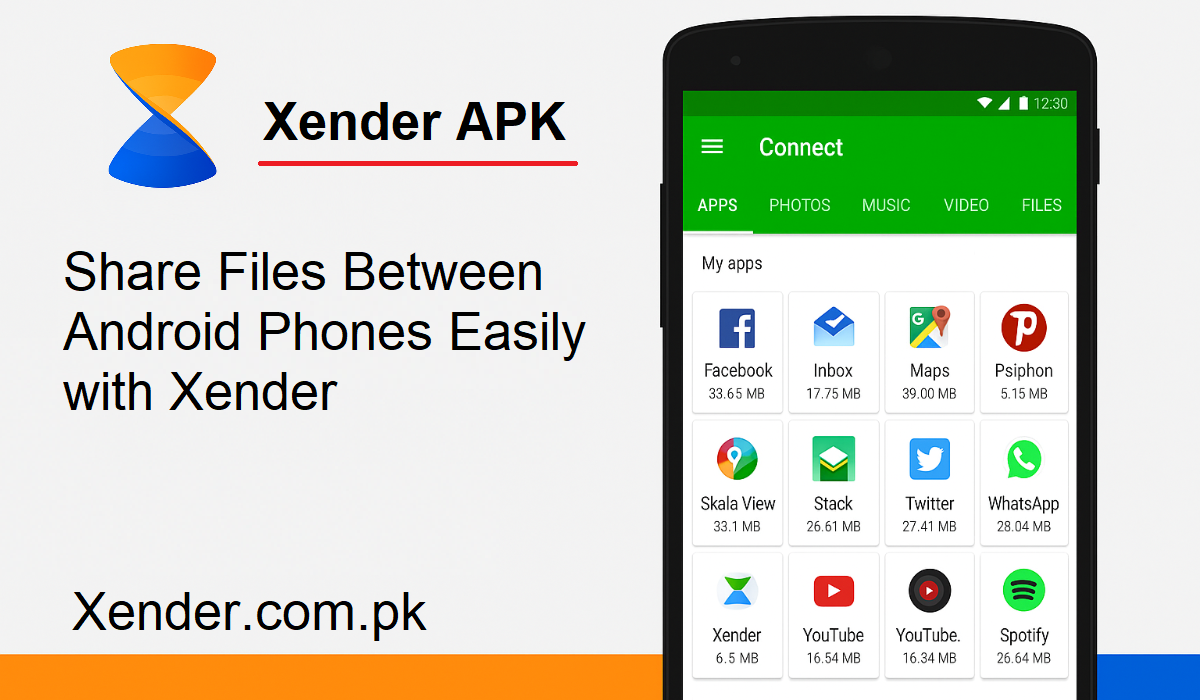
Sharing files between Android phones used to be tedious and slow. But with the advent of apps like Xender, it’s wireless, fast, and simple now. Whether you’re sharing photos, videos, music, apps, or documents, Xender makes it a cakewalk. In this tutorial, we’ll guide you through the step-by-step process of sharing files from Android to Android using Xender.
Why Use Xender
Xender is a highly popular Android file-sharing application. It does not use mobile data or cables. Rather, it transfers files through Wi-Fi Direct at a fast speed. It is free of cost, easy to use, and supports all types of files. This is what you should do.
Step-by-Step Guide to Sharing Files between Two Android Phones
Open Xender on Both Devices
- First, make sure that both Android phones have the Xender app installed on them. You can download it for free from the Google Play Store.
- Once installed, launch Xender on both phones.
- Hold both phones together close to each other to facilitate a good connection.
- This places the app in the position to initiate file sharing.
Connect the Devices
- Now you will have to connect the two phones.
- On the sender’s phone, click on the “Send” button.
- On the call-receiving phone, press the “Receive” button.
- Xender will now look for devices around. This can take a few seconds.
- When the receiver’s name appears on the sender’s phone, tap it.
- This starts the process of linking the two Android devices.
Create Connection
- The receiver will then notice a message asking to connect.
- Press “Accept” on the receiving device.
- Xender will directly establish an encrypted Wi-Fi hotspot between the two devices. This is very quick and does not consume any mobile data.
- No passwords required. No internet required. Just a simple and quick pairing.
Send Selected Files
- Once both phones are paired, you can select what you want to share with the other person.
- On your phone that is sending, open your files in the Xender application.
- You have the option to upload photos, videos, music, apps, or documents.
To select a file:
- The file opens just by clicking on it.
- You can choose multiple files at once.
- After selecting, tap the “Send” button.
- Xender will then start transferring the files to that second phone.
Step 5: Allow the Transfer to Finish
- The transfer speed is typically very fast, much faster than Bluetooth.
- You will get a progress bar to indicate the file transfer status.
- After that is done, the recipient will be notified.
- These get saved in the Xender folder of the receiving phone. A few phones ask you to save the files in a particular place, based on your settings.
You can now see or open the files directly from the gallery, file manager, or even in Xender.
Tips for Seamless Transfer
- Double-check that both phones are together when transferring.
- Switch off mobile data if you must, to avoid interfering with the Wi-Fi hotspot.
- Ensure storage capacity is available on the receiver’s device. For large files, make sure that both phones are fully charged.
Final Thoughts
It’s never simpler to share files between Android phones. Xender does it quickly, securely, and wirelessly. No USB, no SD card, no cloud. Just download, follow a few easy steps, and your files are copied in seconds. Regardless of whether you are sharing pictures to another phone or video to your buddy, Xender is an essential app for your Android phone. Try it, and you will never resort to slow transfers again.