

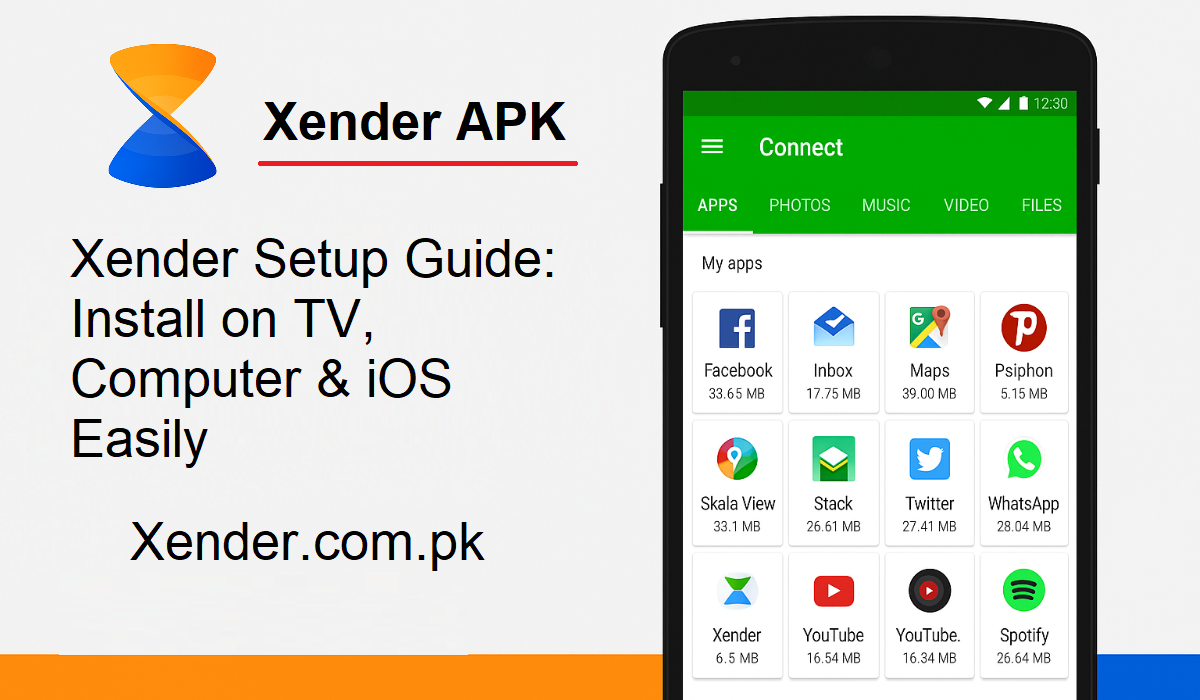
Xender is one of the most popular apps for instant file transfer without cellular data or wires. If you are viewing on TV, computer, or iPhone, Xender allows you to transfer videos, images, documents, and many more in a matter of clicks.
In this tutorial, we’ll guide you through how to download Xender on Smart TVs, Laptops, and iOS devices. Let’s begin!
How to Download Xender for Smart TV
Would you like to watch your favorite television show on the big screen? You can share and watch files using Xender on your Smart TV. Here is how:
For Android TVs:
If your television is an Android TV, the procedure is very easy:
- Switch on your TV and launch the Google Play Store.
- Search for “Xender” using the search option.
- If you locate the app, tap Install.
- Open the app after the installation and proceed with the pairing process.
You can now share files between your TV and phone directly. This is ideal for watching videos or viewing photos on a big screen.
For Non-Android TVs:
If your TV does not support Android apps, never mind. You can use Xender with screen mirroring. Here’s how to do it:
- Install Xender on your phone.
- Ensure that your phone and TV are plugged into the same Wi-Fi network.
- Turn on screen mirroring on your TV. (Search for Miracast, Chromecast, or something similar.)
- On your phone, choose your TV from the list of available devices.
- Now your phone screen is projected on the TV. You can now open Xender and send files to others with your TV as a display.
How to Download Xender for Laptop or PC
Xender is not limited to mobile phones. You can even use it on your Windows or Mac laptop. This is wonderful for sending bulk files, data backup, or document transfer without USB cables.
Use the Web Version (No Install Required)
This is the fastest method to utilize Xender on your computer:
- Launch your web browser on your computer.
- Go to the official website: https://xender.com.pk/
- In your phone, launch the Xender app and click on “Connect to PC”.
- You will see a QR code on your computer screen.
- Scan the QR code with your phone.
- Once paired, you can easily send or receive files from your phone to your computer.
Install the Xender App on PC
If you prefer a more stable setup, you can install Xender on your PC:
- Visit https://xender.com.pk/ and download the Windows or Mac version of the PC version.
- Install the app on your device.
- Launch Xender on your phone and PC.
- Pair the two devices via a QR code or hotspot.
Now you can smoothly and quickly share files between your phone and computer.
How to Download Xender on iPhone or iPad (iOS)
Xender is also supported by Apple users. If you’re using an iPhone or iPad, these are the steps to follow:
- Launch the App Store on your iOS device.
- Look for “Xender – File Transfer & Share”.
- Tap “Get” to download and install the application.
- Launch Xender and grant it the required permissions.
Once you install it, you can use it just like on Android. Easily share files with other iOS, Android, or even PC devices.
Final Thoughts
Xender makes file sharing easy on all kinds of devices, whether it’s a TV, laptop, Android, or iOS. The app is free, internet-free, and offers high-speed transfers. Just do the correct method for your device, and you’re all set.